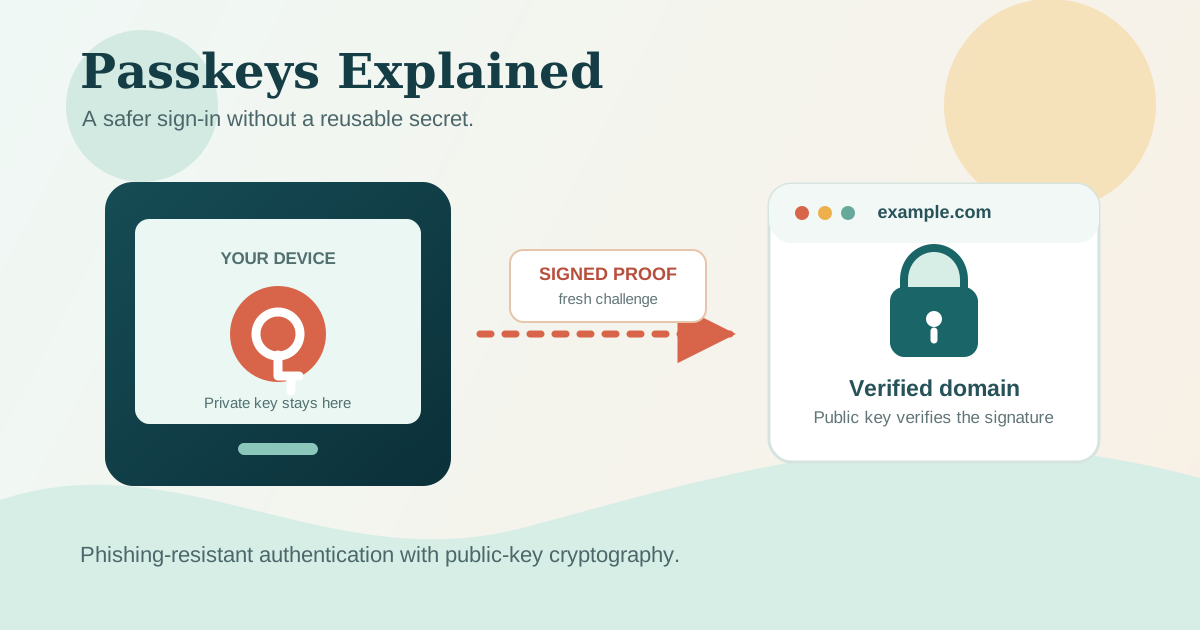
A login screen can ask for a password and a six-digit code. It can still be fooled by a convincing fake website.
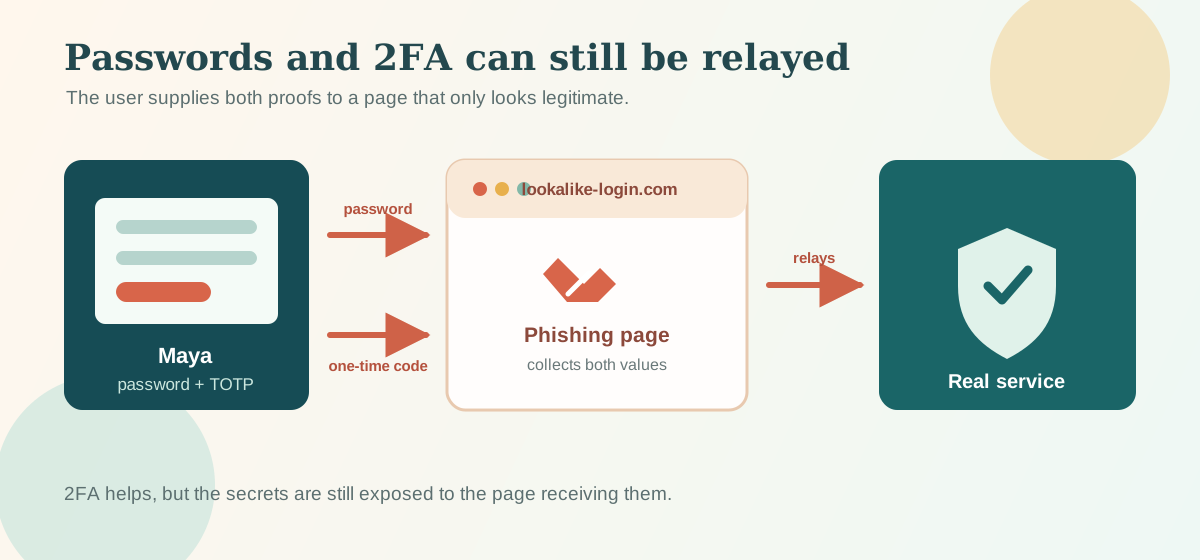
Imagine Maya receives an email that appears to be from her payroll service. She clicks the link, enters a strong password and a code from her authenticator app. An attacker relays both to the legitimate site and uses the resulting session.
Passwords plus two-factor authentication (2FA) are much better than passwords alone. They remain an important upgrade for many accounts. But both steps can still depend on Maya recognizing the right site and refusing to hand over secrets. Passkeys change that part of the model. Instead of proving knowledge of a reusable secret, a device proves it holds a cryptographic key for the actual website.
This is not the end of account security. It is a much stronger beginning.
Why Password Logins Keep Causing Trouble
A password is a shared secret. The user knows it, and the service stores a verifier derived from it, ideally with a slow, salted password-hashing algorithm. Password managers make unique, long passwords practical.
The problem remains: a password can be typed into the wrong place. Reuse lets one breach fuel credential-stuffing attacks elsewhere, and reset flows become another entrance to the account. Password storage, breach response, reset support, and brute-force defenses are permanent operational work.
2FA adds an additional proof. With a password plus a TOTP code, the password is something Maya knows and the code comes from something she controls. Push approvals add a confirmation on another device. SMS sends a code to a phone number. These methods greatly reduce the value of a stolen password alone.
They do not all offer the same protection, though. A phishing site can ask for both a password and a current TOTP code. SMS can be vulnerable to number-porting fraud and message interception. Repeated push prompts can wear down a tired person who finally approves one just to make them stop. Recovery, such as an email link or help-desk process, may reduce the whole system to its least protected path.
None of this means people should turn off 2FA while waiting for passkeys. Password plus an authenticator-app code is still a meaningful improvement over password-only login. The point is that the normal flow still asks a person to transmit secrets to a site, then asks that person to spot an impostor under pressure.
What Is a Passkey?
A passkey is a public-key credential for a particular website or app. It is usually unlocked on the user's device with a PIN, fingerprint, or face recognition. That local check is called user verification.
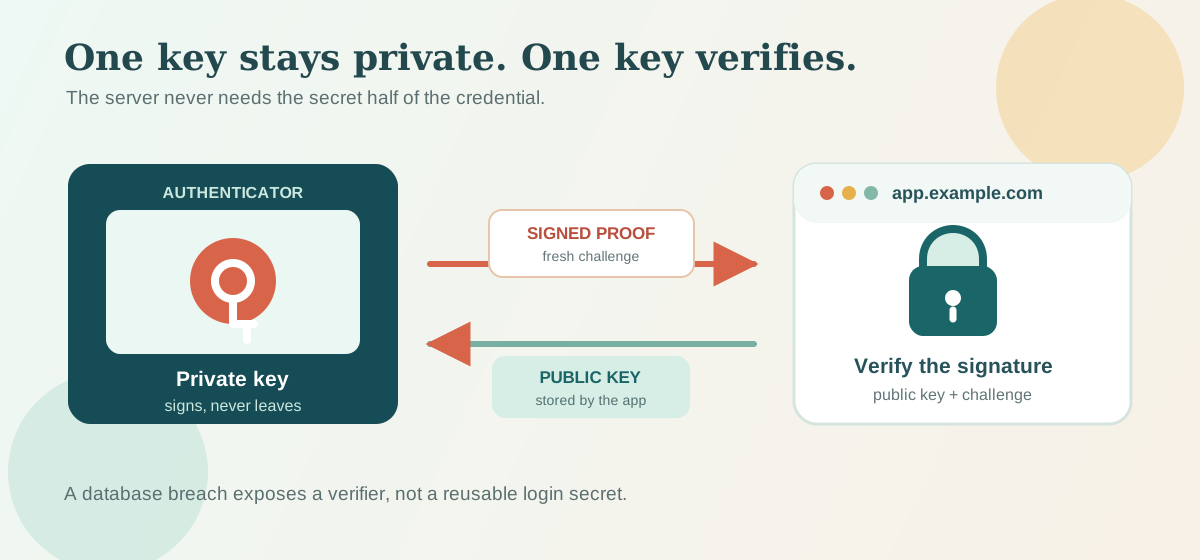
The website receives a public key and a credential ID. The corresponding private key stays protected by the device, operating system, password manager, or external security key. The private key is not sent to the website during sign-in. When the website needs proof, the authenticator uses the private key to sign fresh data. The server verifies that signature using the public key it already has.
This distinction matters for privacy too. A fingerprint or face scan usually unlocks the local device authenticator. The website does not receive Maya's fingerprint, face template, or a portable biometric identifier as part of the sign-in ceremony.
Many passkeys are discoverable credentials. The authenticator can find an appropriate account for a site without the person entering a username first. That enables the passkey suggestion you may see in a browser sign-in field. A passkey can also be associated with an account after the user has provided an identifier. Both user experiences can be useful.
Passwords, 2FA, and Passkeys Compared
| Property | Password | Password plus TOTP or SMS 2FA | Passkey |
|---|---|---|---|
| Main credential model | Shared secret | Shared secret plus another proof | Public-key credential |
| What the server keeps | Password verifier | Password verifier and 2FA enrollment data | Public key and credential ID |
| Phishing resistance | Low | Better, but codes can be relayed | High for the sign-in ceremony |
| Sign-in friction | Type a password | Password plus code or approval | Local device verification |
| Recovery challenge | Resetting a secret safely | Resetting a secret and second factor safely | Recovering access without weakening the account |
| Deployment maturity | Universal | Widely available | Strong modern support, with legacy and policy gaps |
Passkeys do not make a stolen session cookie harmless, prevent malware from acting on an unlocked device, or decide whether Maya is allowed to approve payroll changes. They make the authentication step more resistant to common credential theft and phishing.
How a Passkey Signs In
Consider app.example.com. Maya signs in with a password and 2FA today, then chooses Add a passkey from account security settings.
During registration, the server creates a random, short-lived challenge and records it with Maya's current authenticated session. The browser calls the Web Authentication API, commonly called WebAuthn. Maya's chosen authenticator creates a new key pair scoped to the relying party, which is the service requesting authentication. Here, the relying party ID is normally example.com, not a loosely related lookalike domain.
The browser returns registration data. The server verifies the challenge, expected origin, relying party ID, and requested user-verification policy. It then stores the credential ID, public key, and association with Maya's account. Some authenticators offer a signature counter, which can be retained as an authenticator-aware signal, but it is not a universal clone detector.
At a later sign-in, the server sends a new challenge. Maya sees a local prompt and unlocks her authenticator. The private key signs data that includes the challenge and authenticator data. The server checks the signature with the stored public key and creates an application session if it is valid.
sequenceDiagram
    participant Maya
    participant Browser
    participant Authenticator
    participant App as app.example.com

    Maya->>Browser: Choose passkey sign-in
    Browser->>App: Request authentication options
    App->>App: Create and store fresh challenge
    App-->>Browser: Challenge and relying party ID
    Browser->>Authenticator: Request assertion for example.com
    Maya->>Authenticator: Unlock with device verification
    Authenticator-->>Browser: Signed assertion
    Browser->>App: Credential ID, authenticator data, signature
    App->>App: Verify challenge, origin, RP ID, and signature
    App-->>Browser: Create authenticated session
A database breach is still serious. Attackers may gain account data, email addresses, public keys, and credential IDs. But those public keys are not reusable login secrets. They cannot be pasted into a phishing form or used to produce a valid signature without the private key.
Why Passkeys Resist Phishing
The security advantage comes from binding the credential to the site. WebAuthn checks the browser origin, and the authenticator uses the relying party ID to decide which credential it may use. A passkey created for example.com should not authenticate examp1e.com, even when the fake page copies every pixel of the original.
That is a substantial shift. Password security often depends on a person noticing a tiny difference in a domain name while rushing through a task. Passkey security lets the browser and authenticator enforce the relationship instead.
The boundary is important. Origin binding cannot protect Maya if her legitimate device is compromised, if a malicious browser extension can control a signed-in session, or if the real application has a broken authorization check. It also does not prevent an attacker from using a session that was stolen after sign-in. Secure cookies, session rotation, authorization, rate limiting, fraud controls, and audit logs still belong in the system.
The Standards Behind the Prompt
WebAuthn is the browser API that lets a website ask for public-key credentials. FIDO2 is the broader family of standards and ecosystem that make this form of passwordless authentication interoperable. If a browser talks to an external security key over USB, NFC, or Bluetooth, it can use CTAP2, a protocol between the client and authenticator.
A few terms make implementation discussions less mysterious:
- Relying party: The application asking for authentication, such as
example.com. - Client: Usually the browser or operating system that coordinates the ceremony.
- Authenticator: The component holding the private key, such as a laptop's built-in authenticator, a phone, a password manager, or a hardware security key.
- Credential ID: An identifier that lets the server and authenticator locate the right public-key credential.
- Challenge: Fresh, unpredictable server data that prevents a recorded sign-in response from being replayed.
- Authenticator data: Metadata returned with an assertion, including information the server verifies alongside the signature.
A laptop or phone's built-in option is a platform authenticator. A USB or NFC security key is a roaming authenticator because it can move between devices. Some passkeys synchronize through an account ecosystem, while others are device-bound or kept on a hardware key. Behavior depends on the platform, browser, authenticator, policy, and configuration. Do not promise users that every passkey follows them everywhere.
What a Real Implementation Requires
The browser call is the visible part. The server-side verification is where a secure implementation earns its keep.
Use a maintained WebAuthn server library, such as a library in the SimpleWebAuthn category, rather than manually decoding CBOR, COSE keys, attestation objects, and assertions. It is very easy to turn a specification detail into a login bypass when parsing this data yourself.
The following TypeScript is illustrative. Production code should obtain options from a verified server endpoint and send the result back to another server endpoint for validation.
const options = await fetch("/api/passkeys/register/options", {
  method: "POST",
  credentials: "include",
}).then((response) => response.json());

const credential = await navigator.credentials.create({
  publicKey: {
    ...options,
    challenge: Uint8Array.from(atob(options.challenge), (char) =>
      char.charCodeAt(0),
    ),
    user: {
      ...options.user,
      id: Uint8Array.from(atob(options.user.id), (char) => char.charCodeAt(0)),
    },
  },
});

await fetch("/api/passkeys/register/verify", {
  method: "POST",
  headers: { "Content-Type": "application/json" },
  credentials: "include",
  body: JSON.stringify(credential),
});
The server must generate high-entropy challenges, expire them quickly, mark them single-use, and bind them to the registration or authentication attempt. For every response, verify the expected challenge, origin, relying party ID, signature, user-verification requirements, and account context. Persist the credential ID, public key, user association, and any relevant authenticator metadata. Never accept a user ID from a browser as proof of which account should receive a credential.
WebAuthn requires a secure context, which means serving the application over HTTPS in normal deployment. Browsers commonly treat localhost as a development exception, but confirm behavior in the target browsers and environments rather than relying on folklore.
Attestation deserves restraint. It can provide information about an authenticator at registration, but it is optional, may have privacy implications, and does not prove a device is safe for every threat model. Most consumer applications do not need it to start offering passkeys.
Roll Out Passkeys Without Stranding People
For an existing application, the safest first release is often an additional sign-in method. Let a user add a passkey after a recent, verified sign-in. Keep the established path during rollout, measure success and failure rates, and only reduce reliance on passwords when the user population is ready.
A passkey-first screen can offer an account picker or browser autofill when supported. A username-first flow is a practical fallback when the device cannot discover credentials or the user is signing in from a shared computer. Give each saved credential a meaningful name, allow more than one credential per account, and make removal visible in account security settings.
Recovery needs the same design attention as primary authentication. A consumer service might use carefully secured recovery through a verified email account, with delays and notifications for sensitive changes. An enterprise service may require an administrator workflow or a portable hardware key. A banking or payroll product might require stronger identity checks and step-up verification. The right answer changes with the cost of account takeover, but an instant reset link that bypasses every other control can undo the benefits of passkeys.
Track enrollment, successful sign-ins, fallback use, recovery events, and passkey additions or removals. Alert users about important credential changes. Keep telemetry focused on operational outcomes, not unnecessary biometric or device detail.
Benefits, Limits, and When to Choose Another Control
Passkeys remove reusable password secrets from normal sign-in, resist phishing relays, reduce credential-stuffing exposure, and can be faster than typing a password plus a code.
They are not a universal replacement. Older browsers and managed corporate environments may not support the flow. Cross-device sign-in can confuse people, shared terminals can make account discovery undesirable, and some organizations need portable hardware credentials instead of a synced personal ecosystem. Registration, verification, fallback, and recovery take real engineering work.
For high-risk actions, a valid passkey sign-in may not be sufficient by itself. Changing a payout destination, exporting sensitive records, or enrolling a new recovery method can warrant recent authentication, a second controlled channel, transaction confirmation, or fraud review.
Use this checklist when deciding:
- Add passkeys now when most users have supported clients, phishing resistance matters, and you can build a deliberate recovery path.
- Keep a compatible fallback when supporting older devices, regulated accessibility needs, or managed environments with uneven browser policy.
- Prefer a roaming hardware security key when portability and organizational control matter more than consumer-style synchronization.
- Do not make passkeys the only plan for shared-device workflows or before recovery, session security, and sensitive-action controls are designed.
Closing Thoughts
Passkeys are not a password stored on a phone, and they are not a magic shield around an application. They are public-key credentials that let a real site request proof from a real authenticator without asking the user to hand over a reusable secret.
That solves a meaningful part of the login problem. Build them with verified server ceremonies, sensible fallbacks, multiple credential support, and recovery that deserves as much scrutiny as the sign-in button. Then keep doing the less glamorous work: protect sessions, authorize every action, monitor account changes, and assume attackers will look for the easiest remaining door.
Comments
Join the discussion on GitHub.