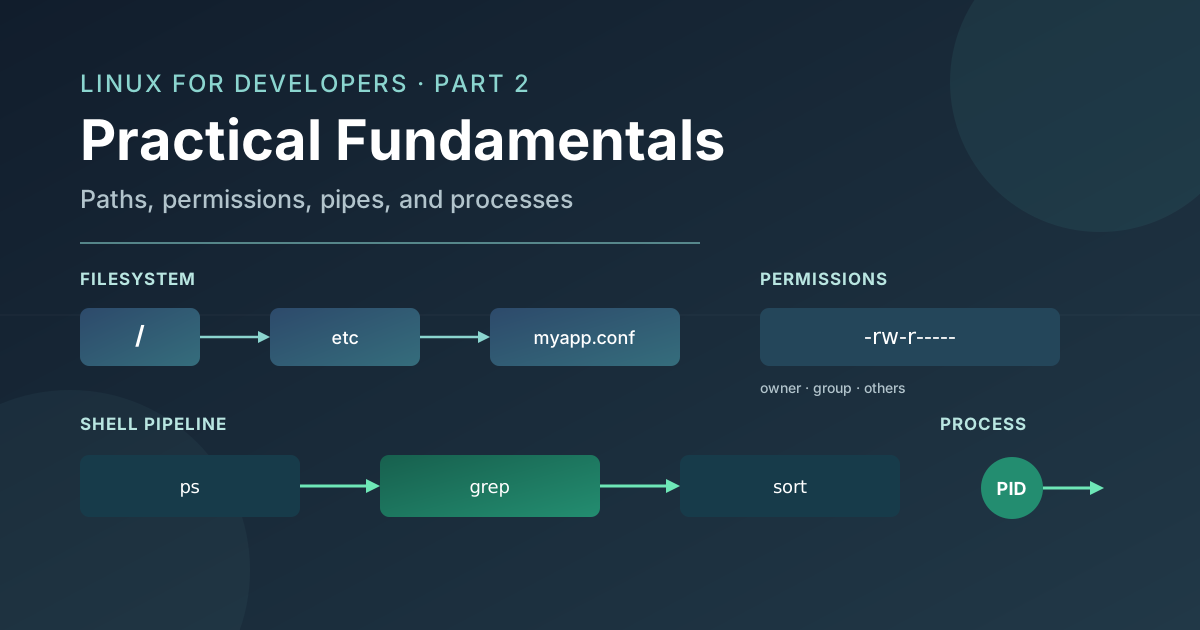
Part 1 established the basic model: applications run in user space, the kernel mediates access to resources, paths identify filesystem objects, and processes are running instances of programs. This article turns that model into practical fluency.
Linux fundamentals are not mainly about memorizing commands. They are about asking useful questions of a system and making controlled changes. Where am I? What is this path? Who owns this file? Where did this output come from? Is the process actually stopped, or is it waiting for something else?
The commands in this article are small interfaces to those questions. For each one, the important thing is not only the syntax, but what the command inspects or changes, what you should observe, and what can go wrong.
From Mental Model to Practical Inspection
Most beginner Linux work falls into four activities:
- Inspection: observe files, processes, permissions, and output.
- Navigation: move through paths and choose the right working location.
- Transformation: filter, sort, count, or redirect information.
- Controlled execution: start, stop, copy, move, or remove something deliberately.
A command's output is not the system itself. It is a report produced at a particular moment, with a particular set of options. ls reports directory entries. ps reports processes using a selected view. grep reports lines matching a pattern. The report can be incomplete or misleading if the question was too broad, the path was wrong, or the state changed immediately afterward.
That distinction is useful during debugging. If ls does not show a file, the file may be missing, hidden, outside the current directory, inaccessible, or named differently. The command has reported what it could see from where it was asked to look. It has not proved that the file does not exist anywhere on the machine.
Navigating the Filesystem
Absolute and Relative Paths
An absolute path starts at the filesystem root, /. A relative path starts from the current working directory of the command or process using it.
pwd
cd /var/log
cd ../tmp
pwd prints the shell's current working directory. cd is usually a shell builtin because changing directory must change the shell's own state. An external program cannot change the parent shell's working directory after it exits.
After cd /var/log, the relative path ../tmp means "go to the directory named tmp beside log under /var." Relative paths are convenient for nearby files, while absolute paths are clearer in scripts and instructions that must not depend on where they start.
The special names . and .. mean the current directory and its parent. A path beginning with ~ is expanded by the shell to the current user's home directory in common shells, but it is shell syntax rather than a filesystem feature.
Listing and Identifying Things
ls lists directory entries. Options such as -l show metadata, and -a includes names beginning with a dot.
ls -la
ls -lh /var/log
A name beginning with . is hidden from ordinary directory listings, but it is not protected. Hidden files are often used for configuration, shell history, and application settings. They still have owners and permissions like other filesystem entries.
file examines the content and metadata it can recognize rather than trusting only the filename extension.
file ./config
file /var/log/example.log
This is useful when a file has an unhelpful name, an unexpected format, or a misleading extension. It does not understand every format, and its answer is an observation rather than a guarantee that an application will accept the file.
Finding a Configuration File
find searches a path tree using conditions such as name, type, size, and modification time. Limit the starting path so the search answers a focused question and does not scan the entire machine unnecessarily.
find /etc/myapp -type f -name '*.conf'
find "$HOME/project" -type f -name 'settings.*'
The first command searches only the illustrative /etc/myapp directory. The second searches a project below the current user's home directory. Quoting the path protects spaces and shell metacharacters from being interpreted before find receives them.
A common mistake is to search from / immediately and suppress every error. That can be slow, noisy, and difficult to interpret. Start near the likely location, inspect the result, and widen the search only when the evidence justifies it.
Symbolic Links
A symbolic link is a filesystem entry that points to another path. It gives one location an alternate name without copying the target's contents.
ls -l /var/log/current.log
readlink /var/log/current.log
A link can point to a file, directory, or another link. It can also become dangling when its target is moved or removed. A directory listing may show the link clearly, while an application opening the link fails because the target path no longer resolves. When debugging a missing file, check both the link and its target.
Reading and Changing Files Safely
Choosing a Reader
cat is useful for short files and for joining small inputs. It is a poor choice for a large log because it sends everything directly to the terminal. less lets you page through output, search within it, and leave without flooding the terminal.
cat ./version.txt
less /var/log/myapp/app.log
head -n 20 ./config.yaml
tail -n 50 /var/log/myapp/app.log
head and tail are useful when the beginning or end is more informative than the entire file. tail -f follows a file as new lines arrive, which is convenient for a log, but remember that applications may rotate logs by renaming the old file and opening a new one. Following one pathname is not always the same as following the service's current log stream.
grep filters text lines that match a pattern.
grep -n 'timeout' /var/log/myapp/app.log
grep -Ei 'error|failed|denied' /var/log/myapp/app.log
The first command includes line numbers. The second uses a case-insensitive extended pattern. grep is excellent for narrowing text, but it is not a full parser for structured logs. A pattern can miss equivalent events, match an unrelated message, or break when a log format changes.
Copy, Move, and Remove
cp creates a copy, mv changes a directory entry's location or name, and rm removes directory entries. These commands act on paths, so confirm the path before making a change.
cp ./config.example ./config.local
mv ./old-report.txt ./archive/old-report.txt
rm ./temporary-output.txt
The mv command may replace an existing destination depending on the options and system behavior. rm does not provide a recycle bin by default. Before using recursive or force options, preview the path and contents separately. A broad pattern such as rm -rf can turn a small typo into a large deletion, so it should never be treated as a routine shortcut.
Permissions, Users, and Groups
Linux permissions answer a specific question: may this process perform this operation on this filesystem object? The answer depends on the process identity, the object's owner and group, its permission bits, and additional security policy that may exist on the system.
A normal long directory listing includes a permission string, an owner, and a group:
-rw-r----- 1 appuser developers 1842 Oct 4 09:30 settings.conf
The first character describes the entry type. The remaining nine characters are three groups of three permissions:
- the owner's permissions
- the group's permissions
- permissions for everyone else
For a regular file, read means its contents can be read, write means its contents can be changed, and execute means the file may be run as a program when other conditions allow it. For a directory, read means its entries can be listed, write means entries can be created or removed, and execute means the directory can be traversed or used to access entries whose names are known.
That last distinction explains many confusing errors. A user might have read permission on a directory but not execute permission. They may be able to see names but fail when trying to inspect an entry inside it. A file may be readable while its parent directory prevents the path from being traversed.
Numeric and Symbolic Permissions
Permissions are often written numerically. Read, write, and execute represent values 4, 2, and 1. The three digits apply to owner, group, and others.
chmod 640 ./settings.conf
chmod u+x ./deploy.sh
640 gives the owner read and write, the group read, and everyone else no permissions. u+x adds execute permission for the owner without changing the other classes. Use the smallest permission set the program needs. Giving every user write access to configuration or executable files makes accidental changes and privilege abuse easier.
id shows the current user's identity and group memberships.
id
ls -l ./settings.conf
chown changes ownership and normally requires elevated privileges when assigning ownership to another user. sudo asks the system's privilege policy to run one command with elevated rights. It is not a universal repair for an error. If the path is wrong, the file is malformed, or the service has another restriction, sudo does not solve the underlying problem.
Debugging Permission Denied
When an operation fails with Permission denied, do not immediately add sudo. Ask a sequence of smaller questions:
flowchart TD
    A[Permission denied] --> B[Confirm the exact path]
    B --> C[Inspect owner and mode]
    C --> D[Check user and groups]
    D --> E[Check parent directory traversal]
    E --> F[Identify the required operation]
    F --> G[Make the smallest justified change]
    G --> H[Retry and verify]
First confirm that the process is using the path you think it is. Then inspect the entry and every important parent directory. A read operation, a write operation, and a directory traversal may require different permissions. Check the process identity with id, then decide whether ownership, group membership, or a specific permission bit should change.
Pipes, Redirection, and Standard Streams
Every normal process starts with three conventional streams:
- standard input, or stdin, for input
- standard output, or stdout, for normal results
- standard error, or stderr, for diagnostics and errors
A terminal normally connects these streams to your keyboard and screen. The shell can connect them somewhere else. A pipe connects stdout from one process to stdin of another process. It does not connect arbitrary application objects or preserve rich data types. The receiving program gets a byte stream and interprets it according to its own rules.
flowchart LR
    A[Command A] -- stdout --> P[Pipe]
    P --> B[Command B]
    A -- stderr --> E[Terminal or file]
    B -- stdout --> O[Terminal or file]
The common operators are:
|sends stdout to another command's stdin.>writes stdout to a file, replacing its previous contents.>>appends stdout to a file.2>redirects file descriptor 2, stderr, to a file.
For example, you might preserve normal output while capturing diagnostics separately:
./check-config >check.out 2>check.err
printf 'exit status: %s\n' "$?"
The shell stores the previous command's exit status in $?. A zero status conventionally means success; a nonzero status means some kind of failure or exceptional result. The exact meaning is defined by the command. Output can look reasonable while the status signals failure, so scripts should check both when correctness matters.
A small pipeline can answer a focused process question:
ps -eo pid,comm,%cpu --sort=-%cpu | head -n 6
Here ps produces a process report, sorts it by CPU percentage, and head keeps the first six lines. This is useful for a quick view, but text parsing can be brittle when output formats change. For automation, prefer a command's structured output or a system interface when one is available.
Processes and Signals in Daily Work
ps takes a snapshot of processes. top or htop refreshes a process view over time. pgrep searches process IDs by a matching name or other criteria.
ps -ef
pgrep -af 'example-worker'
top
Use a specific name or identifier when possible. A broad process-name match can find the command doing the search, a wrapper script, or an unrelated program with a similar name.
A shell normally waits for a foreground command. Appending & starts a background job in that shell's job context.
./example-worker >worker.log 2>&1 &
jobs
This is convenient for short experiments, but it is not a substitute for a service supervisor. Background jobs can depend on the terminal, receive different signal behavior, and disappear when the shell session ends.
kill sends a signal. It does not necessarily terminate a process immediately.
kill -TERM 12345
ps -p 12345 -o pid,stat,cmd
kill -KILL 12345
Use an actual process ID from inspection, not the illustrative number. SIGTERM requests graceful termination, giving the process an opportunity to close files, finish cleanup, and stop accepting new work. SIGKILL cannot be handled by the target process and stops it without that cleanup. Use it only when a process will not respond to a graceful request or is causing an immediate problem.
A Practical Linux Debugging Workflow
When a command or service behaves unexpectedly, use a repeatable sequence instead of escalating privileges or changing several things at once.
1. Identify where you are
Print the current directory and inspect the path you intend to use. Relative paths are a frequent source of errors because they depend on the process's working directory.
2. Inspect before changing
Use ls -l, file, head, tail, or ps to establish what exists and what state it is in. If you are looking for a configuration file, search a likely directory before scanning the entire filesystem.
3. Separate normal output from errors
Redirect stdout and stderr separately when a command's result is difficult to read. The error stream often explains why an apparently empty result is not the same as a successful result with no matches.
4. Check identity and permissions
Use id and inspect ownership, mode bits, and parent-directory traversal. Determine the operation that failed before changing permissions. A service may run as a different user from the one used in your terminal.
5. Make one small change
Change one permission, path, ownership setting, or process action at a time. Broad changes make it difficult to tell which action fixed the problem and can create a larger security or reliability issue.
6. Verify both result and status
Read the output, check the exit status, and inspect the system again. A command finishing without printing an error does not always mean the intended state was achieved.
Troubleshooting Checklist
When you are stuck, ask:
- Am I in the directory I think I am in?
- Is the path absolute or relative?
- Does the target exist, and what kind of object is it?
- Is a symbolic link pointing somewhere valid?
- Which user and groups does the process have?
- Can the process traverse every parent directory?
- Should stdout and stderr be inspected separately?
- Did the command return a success status?
- Am I sending a signal to the correct process?
- Can I make a smaller, reversible change first?
These questions are simple, but they prevent a large amount of guesswork.
What to Learn Next
The shell commands in this article are interfaces to deeper operating-system behavior. ps reports process state, pipes connect file descriptors, permissions are enforced at a kernel boundary, and a service's memory or CPU usage is shaped by mechanisms the shell only reveals indirectly.
Part 3 will go underneath these commands. It will explain how programs become processes, how Linux schedules work, how virtual memory provides isolation, why sockets and files appear as file descriptors, and how containers use kernel namespaces and control groups. Once those concepts fit together, ordinary Linux output becomes much easier to interpret.
Comments
Join the discussion on GitHub.