Linux is often introduced through commands: cd, ls, grep, chmod, ps. Those commands are useful, but learning them first can leave you with a strange picture of the system. You know how to ask Linux to do things, but not what Linux is doing in response.
That gap matters when a service runs out of memory, a process cannot open a file, a container behaves differently from a virtual machine, or a command works on one machine but not another. The syntax is rarely the difficult part. The difficult part is knowing which layer is responsible for the behavior you are seeing.
This article builds that mental model. We will look at Linux as a kernel surrounded by user-space software, then connect it to filesystems, processes, permissions, servers, and containers. The goal is to reason about a real machine, not memorize operating-system vocabulary.
What Linux Actually Is
The word Linux is used in two related ways.
Technically, Linux is a kernel: the privileged core of an operating system that manages hardware and provides low-level services to programs. The kernel handles things such as CPU scheduling, memory management, filesystems, networking, and access to devices.
When people install "Linux," however, they usually install a distribution. A distribution combines the Linux kernel with system libraries, command-line utilities, a package manager, a service manager, documentation, and often a graphical desktop. Ubuntu, Fedora, Debian, and Arch are distributions, not different kernels in the same sense. They make different choices about how the surrounding system is assembled and maintained.
That distinction matters when a command is missing, a package is outdated, or a service starts differently. If a process cannot access memory or a network packet is being routed, the kernel is much closer to the behavior.
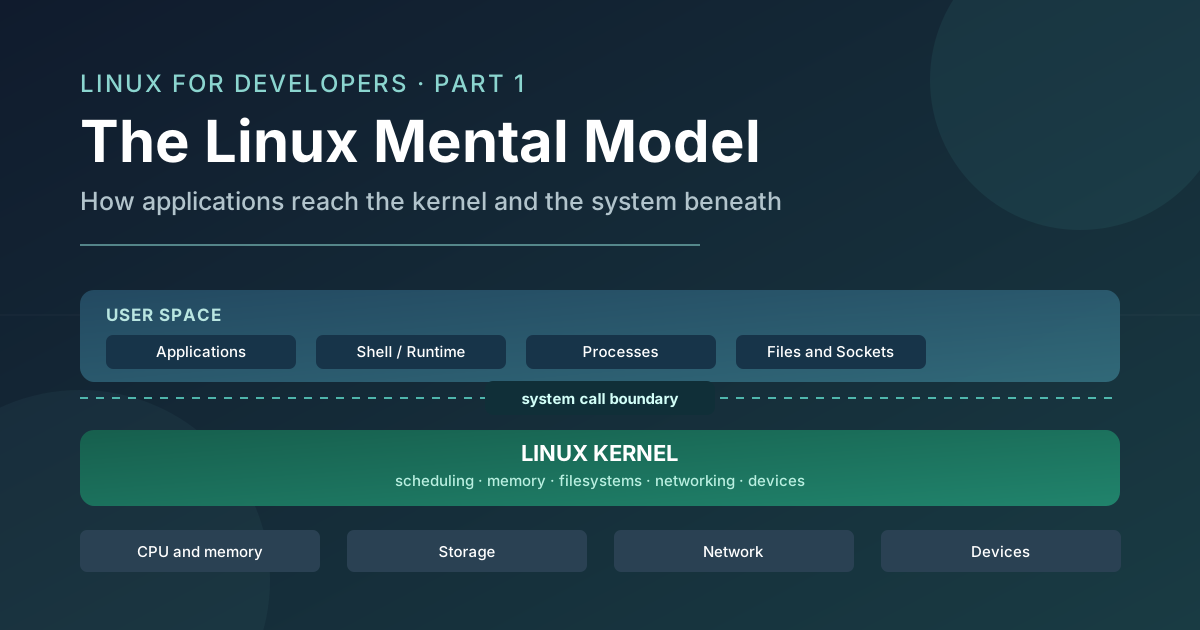
A useful simplified stack looks like this:
| Part | What it provides |
|---|---|
| Application | The program you want to run, such as a web server or editor |
| Shell or runtime | An interface for launching programs, or an environment such as Python or Node.js |
| System utilities and libraries | Reusable tools and code that applications rely on |
| Linux kernel | Scheduling, memory, filesystems, networking, devices, and isolation |
| Hardware | CPU, memory, storage, network interfaces, and other devices |
The shell is therefore not Linux itself. It is one user-space program that gives you a convenient way to launch other programs and connect them together. A graphical desktop, a system service, and a language runtime are also user-space software. They use the kernel, but they are not the kernel.
The Boundary Between Applications and Hardware
An application cannot safely reach into a disk controller or directly rewrite another process's memory. If every program had unrestricted access to hardware, one bug could corrupt the entire machine, and one untrusted program could inspect everything running beside it.
Linux separates ordinary programs from privileged operating-system code into two broad areas:
- User space is where applications, shells, libraries, and most system utilities run. Code here has restricted access.
- Kernel space is where the kernel runs with the privileges needed to manage hardware and core system resources.
This is a protection boundary, not a physical division in memory that you can see as two folders. A user-space program can request a service from the kernel, but it has to cross a controlled interface to do so.
That interface is made of system calls. Opening a file, creating a process, allocating memory, sending data through a socket, and asking the current time are all operations that may require kernel services. A language library usually wraps the low-level system call in a friendlier function, so application code does not need to construct every detail by hand.
flowchart TD
    A[Application] --> B[Shell or language runtime]
    B --> C[System library]
    C --> D[System call]
    D --> E[Linux kernel]
    E --> F[CPU and memory]
    E --> G[Storage and filesystem]
    E --> H[Network interface]
    E --> I[Other devices]
Consider a simple program that writes hello to your terminal. The program does not know how to control the terminal hardware directly. It asks a library to write bytes to a standard output stream. That request eventually crosses into the kernel, which knows what that output stream refers to and passes the bytes to the appropriate device or terminal session.
The example is intentionally simplified. Buffering, a shell, a terminal emulator, and several library layers may be involved. The important point is ownership: the application expresses an operation, and the kernel controls access to the underlying resource.
This boundary also explains why a program can fail with Permission denied even when its code is correct. The program has requested an operation, but the kernel has checked the process's identity and permissions and refused to perform it.
The Filesystem Mental Model
When you first encounter Linux, the filesystem can look like a collection of arbitrary directories. It becomes less arbitrary when you understand that Linux presents much of the system through paths and file-like interfaces, while the kernel decides what those paths represent.
The filesystem has one conceptual root, written as /. Unlike a Windows-style drive-letter model, ordinary paths begin from this single root. A user's home directory might be /home/saurabh, a service's configuration might live below /etc, and temporary working data might live below /tmp.
Some common locations are:
/home: personal directories for ordinary users./etc: system and service configuration files./var: data that changes while the system runs, including logs, caches, and application state./tmp: temporary files. They may be removed automatically or during a reboot, depending on the system's configuration./dev: file-like representations of devices and device interfaces./proc: a kernel-provided, file-like view of process and system information./usr: many installed programs, libraries, and shared read-only data on systems that follow this layout.
This is a useful map, not a promise that every distribution arranges every detail identically. The key idea is that a path is a name in a namespace, and the kernel resolves that name to a resource.
Linux is sometimes described with the phrase "everything is a file." That phrase points at a useful design tradition, but it should not be taken literally. Regular files are sequences of bytes stored by a filesystem. Directories, devices, pipes, sockets, and kernel interfaces are different kinds of objects. Many of them can be accessed through familiar file operations, which gives programs a consistent interface, but they do not all have the same behavior.
A regular file can usually be read from repeatedly. A network socket represents communication with another endpoint. /proc exposes information generated by the kernel rather than ordinary data stored on disk. The shared interface is valuable precisely because programs can use similar operations while the kernel handles the underlying differences.
The Process Mental Model
A program is a file containing instructions and data. A process is a running instance of a program, together with the state it needs while running.
That state includes a process ID, memory mappings, open files and sockets, environment variables, permissions, and a current working directory. Two processes can run the same program while having different arguments, configuration, users, and files open.
The distinction is easy to see with a web server. The executable on disk is the program. When a service manager launches it, the kernel creates a process with a process ID, gives it memory, establishes its environment, and schedules its instructions on a CPU.
Every process has a parent process, except for the special ancestry at the top of the process tree. This makes process trees useful during debugging: if a process keeps reappearing, its parent or supervisor may be deliberately starting it again.
A Terminal Is Not a Process
A terminal window, a shell, and a command are related but distinct:
- A terminal emulator is a user-space application that displays text and accepts keyboard input.
- A shell such as Bash or Zsh reads commands and launches programs.
- A command such as
lsis usually an external program that the shell starts, although some commands are shell builtins. - The launched program runs as a process.
The shell connects these pieces. It provides a command's environment, attaches standard input and output, and waits for the process to finish. A long-lived server launched from a terminal may inherit that terminal's input and output, so closing the terminal can affect it depending on how it was started.
Processes also receive signals, small operating-system notifications that request a change in state. A signal may ask a process to terminate gracefully, pause, continue, or reload configuration. The practical lesson is that stopping a process is a request with semantics, not deleting a row from a process list.
Why Linux Is Common on Servers
Linux is common on servers because several design and ecosystem properties reinforce each other. No single property explains the result, and "Linux is faster" is too vague to be useful. The relevant question is: faster or more controllable for which workload, under which constraints?
It Supports Multi-User, Multi-Process Workloads
Servers commonly run many services and workers at once. Linux has long treated multiple users, processes, permissions, and background services as normal operating-system concerns. A web server, database, monitoring agent, scheduled job, and log collector can run together while the kernel allocates CPU time, memory, files, and network access among them.
That does not make resource conflicts disappear. It gives administrators mechanisms for observing and controlling them.
It Makes Privilege Boundaries Explicit
A service should not need unrestricted administrator access to serve HTTP traffic. Linux users, groups, file ownership, permission bits, capabilities, and other security mechanisms let operators define which resources a process may access.
These controls can be configured badly, of course. Linux does not make a system secure automatically. It provides a set of explicit boundaries that can be automated, reviewed, and adjusted to match the service.
It Is Designed for Remote Administration and Automation
A server may have no monitor or keyboard attached. Linux's command-line and networking tools let administrators inspect logs, manage processes, change configuration, and automate work remotely. Text-based interfaces are easy to send over a connection, compose in scripts, and reproduce in deployment systems.
Small utilities remain useful because they can inspect a resource, produce text, and pass that output to another tool. This is powerful when the operator understands the data flow, and dangerous when commands are copied without understanding what they change.
It Offers Control Over the Running System
Linux exposes many system behaviors through configuration, logs, and observability tools. Operators can choose a minimal installation, control updates, and inspect resource usage at a low level.
That control has a cost: more decisions create maintenance and security work. Linux is common on servers not because it eliminates complexity, but because it gives infrastructure teams control over where that complexity lives.
It Has a Broad, Durable Ecosystem
Server software, programming languages, monitoring tools, databases, and automation systems commonly support Linux well. Hardware vendors, distributions, and software projects have built a large ecosystem around it.
Teams choose an environment they can provision, secure, debug, update, and hire for. Linux benefits from decades of tools and operational knowledge in those areas.
Why Containers Depend on Linux Concepts
A container is often described as a lightweight virtual machine. That analogy can help at the very beginning, but it becomes misleading if you rely on it too long.
A traditional virtual machine includes a guest operating system and its own kernel. A Linux container is better understood as one or more isolated processes that share the host's Linux kernel. The processes see a restricted view of the system and can have limits placed on their resource usage, but they do not boot a separate kernel for each container.
Two Linux mechanisms explain much of this behavior:
- Namespaces control what a process can see. A process may have its own view of process IDs, network interfaces, mounts, or hostnames even though the kernel is shared.
- Control groups, commonly called cgroups, account for and limit resource usage. A group of processes can be given constraints on CPU, memory, or other resources.
flowchart TD
    A[Container process A] --> N[Linux namespaces]
    B[Container process B] --> N
    N --> K[Shared Linux kernel]
    K --> C[cgroups: resource accounting and limits]
    K --> H[Host CPU, memory, storage, and network]
    V[Virtual machine] --> G[Guest kernel]
    G --> H
The container processes are isolated from one another through kernel features, but the kernel remains a shared dependency. That has practical consequences. A kernel bug or kernel-level resource limit can affect many containers. A container that reaches its memory limit can be stopped even when the host still has free memory, because the limit applies to the container's resource group rather than to the host as a whole.
This is why learning Linux helps when working with containers. You do not need to become a kernel developer, but you do need to understand that a container is a process with isolation and resource controls, not a miniature computer with a private operating system.
The Mental Model to Keep
When a Linux system behaves unexpectedly, start with these relationships:
- Applications request services. They do not directly own the CPU, memory, disk, or network hardware.
- The shell is an interface. It launches programs and connects their input and output, but it is not the operating system itself.
- Processes consume resources. A running program has memory, permissions, open resources, and a place in a process hierarchy.
- The kernel mediates access. System calls cross from user space into privileged kernel code.
- Paths name resources. Regular files, directories, sockets, devices, and kernel interfaces can share familiar file-oriented operations without being identical objects.
- Permissions are part of execution. A correct program can still be refused by the kernel if its identity is not allowed to perform an operation.
- Containers are isolated processes. Namespaces shape what they see, cgroups constrain what they consume, and the host kernel remains shared.
These are connected ideas, not separate Linux trivia. A service reads configuration through a filesystem path, runs as a process with a particular user, opens a network socket through a system call, consumes memory scheduled by the kernel, and may eventually run inside a container with additional namespaces and resource limits.
What to Learn Next
A mental model becomes useful when you can apply it to a real system. The next step is practical fluency: navigating paths, inspecting files, understanding ownership and permissions, composing commands with pipes and redirection, and examining processes without guessing.
Part 2 will focus on those Linux fundamentals developers use every day. The goal will not be to collect a larger command list. It will be to understand what common commands inspect or change, what their output means, and how to debug ordinary filesystem and process problems safely.
Comments
Join the discussion on GitHub.