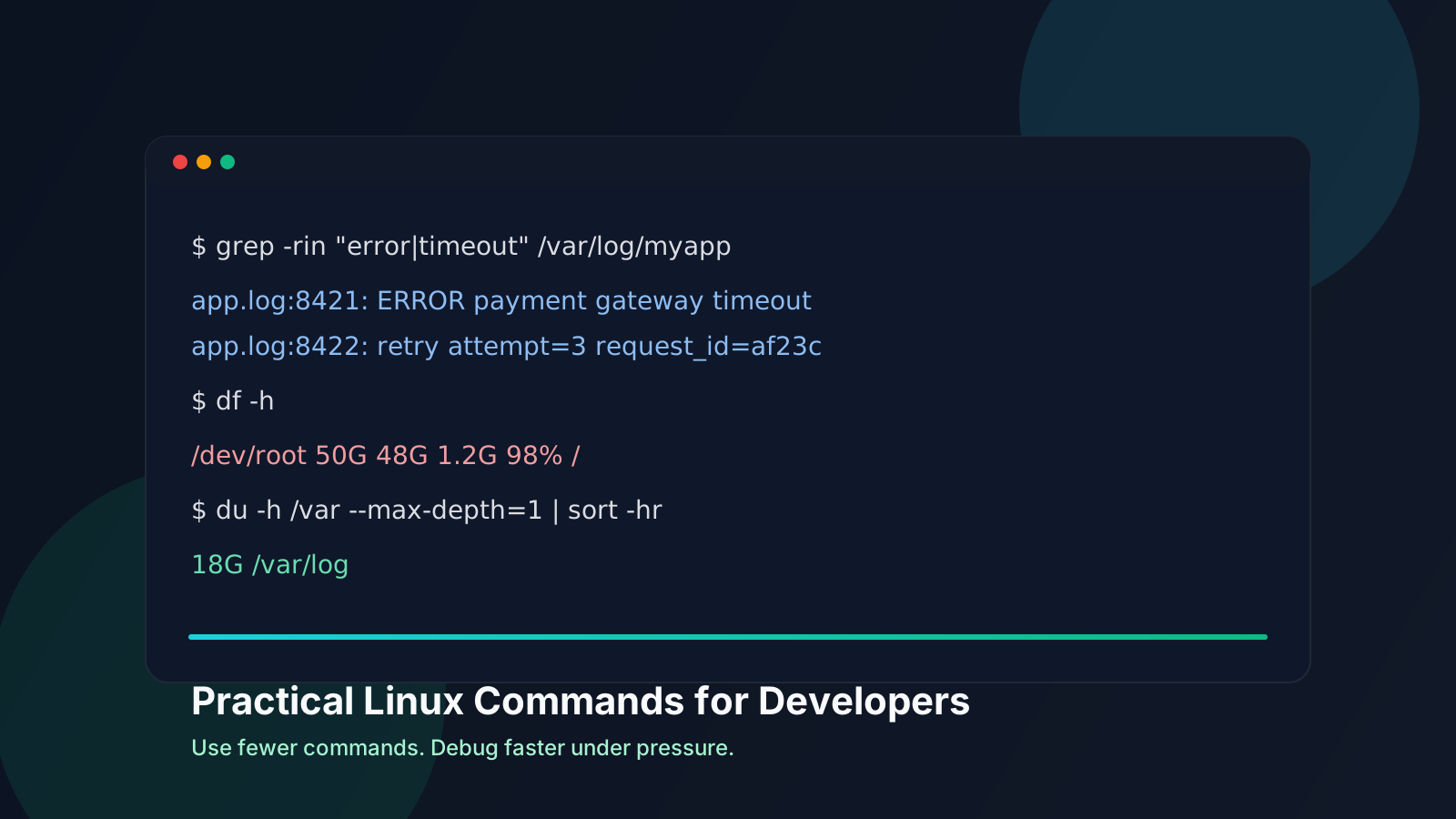
You SSH into a server at 2:13 AM.
CPU is spiking. Disk alerts are firing. Your API is timing out. Logs are exploding faster than you can scroll.
You run a few commands from memory. Then copy-paste something from an old Slack thread. Then another command from StackOverflow. Some output appears. None of it answers the question you actually need:
What is broken right now, and what is the fastest safe fix?
Most developers use Linux commands every week. Many use them every day. But under pressure, usage turns into command roulette.
This article is about the commands you already know, used in the way production incidents demand.
No giant cheat sheet. Just practical command workflows that save real time when systems are noisy.
The Real Skill: Composition, Not Memorization
Linux is a toolbox of small programs.
The power does not come from memorizing every flag. It comes from composing a few commands quickly and safely when the system is on fire.
You do not need 200 commands. You need 8 commands you can trust under pressure.
1) grep: Your Log Debugging Superpower
What people think it does
"Searches for text in a file."
True, but too shallow.
What actually matters in real usage
grep is a signal extractor. It helps you cut noisy logs into a precise stream of evidence.
The useful flags in production:
-r: recursive search through directories-i: case-insensitive match-v: invert match (remove noise)-E: extended regex-n: show line numbers-C 3: include context around matches
Practical examples
# Find errors across all app logs
grep -r "ERROR" /var/log/myapp

# Same search, case-insensitive, with line numbers
grep -rin "error" /var/log/myapp

# Keep only 5xx failures from access logs
grep -E '" 5[0-9]{2} ' /var/log/nginx/access.log

# Remove health checks and keep real requests
grep -v "GET /health" /var/log/nginx/access.log

# Combine with tail to watch only relevant lines
tail -f /var/log/myapp/app.log | grep -i "timeout\|failed\|exception"
Common mistakes
- Grepping huge directories without narrowing scope, which creates more noise than insight.
- Forgetting
-iand missing errors because the casing differs. - Writing fragile regex and assuming it matched what you intended.
- Running
grepon compressed logs without using the right tool (zgrep).
Real-world scenario
Your checkout API fails intermittently.
Start broad:
grep -rin "checkout" /var/log/myapp
Then reduce noise:
grep -rin "checkout" /var/log/myapp | grep -vi "health\|metrics"
Then isolate failures only:
grep -rin "checkout" /var/log/myapp | grep -Ei "error|timeout|failed|exception"
At this point you usually have enough to identify one failing dependency or one bad input path.
flowchart TD
    A[Application error observed] --> B[Logs generated]
    B --> C[grep broad search]
    C --> D[Filter noise with grep -v]
    D --> E[Regex isolate critical lines]
    E --> F[Root cause clue]
2) find: File System Control, Not Just Search
What people think it does
"Finds files by name."
What actually matters in real usage
find is how you ask precise filesystem questions by name, type, size, and age.
Important selectors:
-type for-type d-nameand-iname-mtimefor modified time (days)-sizefor file size-maxdepthto control recursion-execfor safe action per match
Practical examples
# Find log files older than 7 days
find /var/log/myapp -type f -name "*.log" -mtime +7

# Delete those old logs carefully
find /var/log/myapp -type f -name "*.log" -mtime +7 -exec rm -f {} \;

# Find files larger than 500MB
find / -type f -size +500M 2>/dev/null

# Find recently modified deploy files in last day
find /srv/app -type f -mtime -1
Common mistakes
- Running destructive
find ... -exec rmdirectly without previewing matches first. - Forgetting to restrict path or
-maxdepth, then scanning the whole disk. - Misreading
-mtime: it is in 24-hour chunks, not wall-clock calendar days.
Real-world scenario
Disk usage jumps after a release. You suspect temporary files.
find /srv/app -type f -name "*.tmp" -mtime -2 -size +50M
Preview first. Then remove intentionally:
find /srv/app -type f -name "*.tmp" -mtime -2 -size +50M -exec rm -f {} \;
3) xargs: The Multiplier
What people think it does
"Runs commands from piped input."
What actually matters in real usage
xargs turns one-command-once patterns into one-command-many-times workflows.
It is ideal for batch actions and faster than many naive loops.
Useful flags:
-n: number of arguments per command-P: parallel execution-I {}: placeholder when command position matters-0: null-delimited input (safe with spaces)
Practical examples
# Remove old rotated logs found by find
find /var/log/myapp -type f -name "*.log.*" -mtime +14 | xargs rm -f

# Safer: handle spaces using null delimiters
find /var/log/myapp -type f -name "*.log.*" -print0 | xargs -0 rm -f

# Run gzip on large text logs in parallel
find /var/log/myapp -type f -name "*.log" -size +100M -print0 | xargs -0 -n 1 -P 4 gzip

# Restart multiple Docker containers by name pattern
docker ps --format '{{.Names}}' | grep '^api-' | xargs -n 1 docker restart
Common mistakes
- Using plain
xargswith filenames containing spaces. - Running heavy commands with high
-Pand causing more server load during an incident. - Blindly piping into destructive commands without a dry run.
Real-world scenario
You need to clean old artifacts for hundreds of files quickly.
Dry run first:
find /srv/build-cache -type f -mtime +30 | head
Then execute safely:
find /srv/build-cache -type f -mtime +30 -print0 | xargs -0 rm -f
If the list is huge, batching avoids command-line limits:
find /srv/build-cache -type f -mtime +30 -print0 | xargs -0 -n 200 rm -f
4) curl: API Debugging Without Guessing
What people think it does
"Makes HTTP requests from terminal."
What actually matters in real usage
curl is your reproducible API debugger.
When frontend says "API is broken," curl tells you whether the problem is network, auth, payload, routing, or server behavior.
Critical options:
-X: HTTP method-H: headers-d: request body-v: verbose request and response details-i: include response headers--max-time: fail fast
Practical examples
# Basic GET
curl -i https://api.example.com/v1/health

# Authenticated GET with token
curl -i \
  -H "Authorization: Bearer $TOKEN" \
  https://api.example.com/v1/users/me

# JSON POST
curl -i -X POST \
  -H "Content-Type: application/json" \
  -d '{"email":"dev@example.com","role":"admin"}' \
  https://api.example.com/v1/users

# Verbose mode for debugging TLS, redirects, headers
curl -v https://api.example.com/v1/orders
Common mistakes
- Sending JSON without
Content-Type: application/json. - Testing with no auth header, then blaming backend for 401.
- Copy-pasting browser requests with stale cookies and wrong assumptions.
- Ignoring response headers that clearly explain rate limits or auth errors.
Real-world scenario
Frontend receives 500 on checkout. You need a minimal reproduction.
curl -v -X POST \
  -H "Authorization: Bearer $TOKEN" \
  -H "Content-Type: application/json" \
  -d '{"cartId":"abc123","paymentMethod":"card"}' \
  https://api.example.com/v1/checkout
Now you can compare:
- Same payload from app logs
- Same headers as frontend
- Direct server response
That usually reveals whether failure is payload validation, auth, upstream dependency, or bad deployment.
5) top and htop: Understand System Behavior Fast
What people think it does
"Shows running processes."
What actually matters in real usage
top and htop tell you where CPU and memory are going right now.
That distinction matters:
- High CPU often means hot loops, runaway jobs, or request storms.
- High memory often means leaks, oversized caches, or too many workers.
Practical examples
# Live process view
top

# Sort by memory in top (interactive key)
# Press M

# Sort by CPU in top (interactive key)
# Press P

# Kill a process directly from shell
kill -15 <pid>

# Force kill only if needed
kill -9 <pid>
htop is often easier for humans: better UI, easy sorting, tree view.
htop
Common mistakes
- Killing the symptom process without understanding who keeps restarting it.
- Confusing load average with CPU percentage.
- Ignoring memory growth trends and only looking at instant snapshots.
Real-world scenario
One API node is slow while others are fine.
- Open
top. - Sort by CPU.
- Identify top process and PID.
- Check if it is expected (app worker) or unexpected (debug script, rogue cron).
- Correlate PID timing with logs using
grep.
This avoids random restarts and gives you causality.
6) df vs du: The Disk Confusion That Burns Time
This is where people lose hours.
What people think it does
df: disk usagedu: disk usage
"Same thing, different output format."
No.
What actually matters in real usage
dfreports filesystem-level usage from the filesystem metadata.dureports size of files reachable from a path.
So they can disagree.
If a deleted file is still held open by a running process, df still counts it, but du cannot see it.
That is exactly why you get this painful incident line:
"Disk is full, but I cannot find the file."
Practical examples
# Filesystem-level usage
df -h

# Usage by top-level directories
du -sh /* 2>/dev/null

# Find biggest directories under /var
du -h /var --max-depth=1 2>/dev/null | sort -hr

# Find files larger than 1GB
find /var -type f -size +1G 2>/dev/null
Common mistakes
- Running
dufrom/without depth control and waiting forever. - Assuming
duoutput must matchdfexactly. - Deleting files while services still hold them open and expecting instant space recovery.
Real-world scenario
Alert: root filesystem at 95%.
You run:
df -h
It confirms / is nearly full.
Then:
du -h /var --max-depth=1 2>/dev/null | sort -hr
You find /var/log huge. Then:
find /var/log -type f -size +500M
You rotate or remove safely, but df barely drops. That suggests deleted-but-open files.
Then check open file handles (if available):
lsof +L1
Restarting the process holding those files usually frees space immediately.
flowchart TD
    A[Disk full alert] --> B[df -h confirms filesystem pressure]
    B --> C[du identifies large directories]
    C --> D[find locates oversized files]
    D --> E[Space still missing? check deleted open files]
    E --> F[Restart offending process and recover space]
Bonus: Small Tricks That Save Time Every Week
These are tiny, but they compound.
# Search command history quickly
history | grep kubectl

# Reverse search through history
# Press Ctrl + R and type part of a command

# Repeat last command
!!

# Re-run every 2 seconds (great for watching a metric)
watch -n 2 'df -h'

# Keep command running after logout
nohup long-running-script.sh > run.log 2>&1 &
Where people mess this up:
- Using
!!after a dangerous command without checking. - Forgetting to redirect output in
nohup, then losing logs. - Overusing
watchon expensive commands and creating extra load.
Real Debugging Scenarios
Scenario 1: Disk Is Full
A practical sequence that works:
- Confirm pressure at filesystem level.
df -h
- Identify largest directories.
du -h / --max-depth=1 2>/dev/null | sort -hr | head
- Drill into the worst directory.
du -h /var --max-depth=1 2>/dev/null | sort -hr
- Locate large old files.
find /var/log -type f -mtime +7 -size +200M
- Clean safely after preview.
find /var/log -type f -mtime +7 -size +200M -print0 | xargs -0 rm -f
- If
dfstill high, check deleted open files.
lsof +L1
Scenario 2: High CPU Usage
- Identify hot process.
top
- Get process details and command line.
ps -fp <pid>
- Correlate with application logs for same time window.
grep -Ei "error|timeout|retry|exception" /var/log/myapp/app.log
-
If a worker is stuck in retries, reduce load source and restart only affected process.
-
Verify CPU returns to normal and errors drop.
Scenario 3: API Not Responding
- Check health endpoint from server directly.
curl -i --max-time 5 https://api.example.com/v1/health
- Reproduce failing endpoint with realistic headers and payload.
curl -v -X POST \
  -H "Authorization: Bearer $TOKEN" \
  -H "Content-Type: application/json" \
  -d '{"input":"value"}' \
  https://api.example.com/v1/critical-endpoint
-
Inspect status, response headers, and body.
-
Match timestamp with server logs.
grep -Ei "critical-endpoint|error|exception|timeout" /var/log/myapp/app.log
- Decide if issue is client payload, auth, app bug, upstream timeout, or infra routing.
This is where command composition beats command memorization.
Key Takeaways
- Linux commands are not about memorizing flags like a quiz.
- They are about building short diagnostic pipelines under pressure.
- Most productivity gains come from combining small tools deliberately.
- The command is rarely the hard part. Interpreting output correctly is.
The real skill is not knowing commands. It is knowing how to combine them under pressure.
Comments
Join the discussion on GitHub.