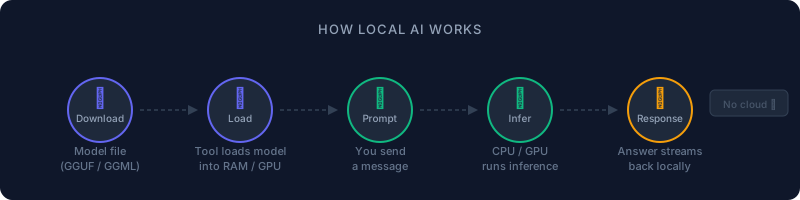
Running AI on your own machine is a lot more accessible than it used to be. You don't need a beefy server, a cloud subscription, or a PhD in machine learning. A decent laptop and 10 minutes is enough to get started. Let's not overcomplicate this.
What You Actually Need
Before downloading anything, here's an honest look at hardware requirements.
RAM is the main bottleneck. Models are loaded into memory while they run, so more RAM means you can run bigger, smarter models.
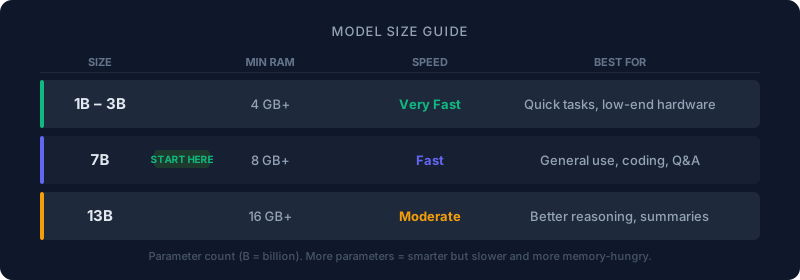
| RAM | What you can run |
|---|---|
| 8 GB | Small models (1B–3B). Usable, not impressive. |
| 16 GB | 7B models comfortably. This is the sweet spot. |
| 32 GB+ | 13B+ models without breaking a sweat. |
CPU vs GPU: You don't need a GPU to start. CPU-only inference works fine for smaller models, just slower. If you have an NVIDIA GPU (or Apple Silicon), the tools will use it automatically for a much faster experience. On an M1/M2/M3 Mac, the unified memory architecture makes local AI genuinely smooth.
Storage: Models range from 2 GB to 10+ GB each. Make sure you have at least 10–20 GB free.
The Two Easiest Ways to Start
LM Studio (GUI, recommended for beginners)
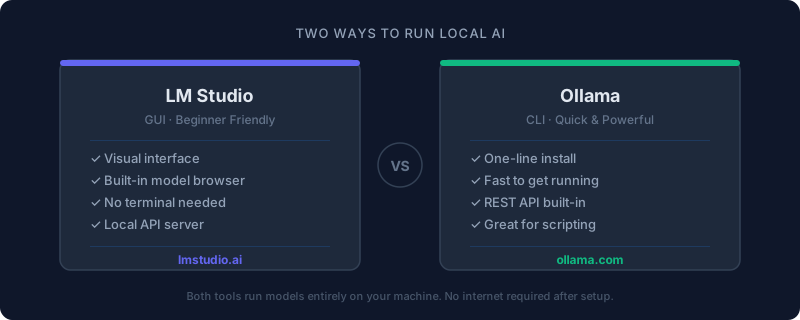
LM Studio is a desktop app with a proper interface. You can browse models, download them, and chat with them without touching a terminal. This is the easiest way to start.
What makes it great for beginners:
- Built-in model search and download
- Chat interface that looks like ChatGPT
- Exposes a local API server so you can connect it to other tools later
Ollama (CLI, quick and scriptable)
Ollama is a command-line tool that makes running models as simple as ollama run llama3. No GUI, but incredibly fast to get going. It also starts a local REST API on port 11434 automatically, which is useful for connecting to editors and scripts.
Step-by-Step Setup
Option 1: LM Studio (Recommended)
1. Install LM Studio
Download the installer from lmstudio.ai and run it. It is available for macOS, Windows, and Linux.
2. Download a model
Open the app and click the search icon in the left sidebar. Search for llama or mistral and download one of the GGUF variants. Start with a Q4 quantized 7B model — it is a good balance of speed and quality.
3. Load and run the model
Go to the chat tab, select your downloaded model in the top dropdown, and start chatting.
4. Start the local server (optional)
Click the server icon in the sidebar and hit "Start Server". This exposes an OpenAI-compatible API at http://localhost:1234/v1 — useful for connecting VS Code extensions or scripts.
Option 2: Ollama (CLI)
Install on macOS or Linux:
curl -fsSL https://ollama.com/install.sh | sh
On macOS you can also use Homebrew:
brew install ollama
Windows: Download the installer from ollama.com.
Run your first model:
ollama run llama3
That's it. Ollama downloads the model if it's not already cached and drops you into an interactive chat. Type your message and press Enter.
List downloaded models:
ollama list
Run a different model:
ollama run mistral
Use the API directly:
Ollama automatically starts a REST server. You can hit it with curl:
curl http://localhost:11434/api/generate -d '{
  "model": "llama3",
  "prompt": "What is a REST API?",
  "stream": false
}'
Where to Find Models
The main source is Hugging Face. It hosts thousands of open-source models, but it can be overwhelming at first.
For LM Studio, the built-in search is your best friend. It filters specifically for models compatible with local inference.
For Ollama, vist ollama.com/library for a curated list of models that work out of the box.
Which Model Should You Use?
Here are three solid beginner picks:
Llama 3.2 3B — Fast, tiny, runs on anything. Good for quick questions and light coding help. If you have 8 GB RAM, start here.
Llama 3 8B — The most common starting point. Good reasoning, handles coding, summaries, Q&A. Needs 8 GB RAM comfortably.
Mistral 7B — Very capable at 7B. Particularly strong at following instructions. Great alternative to Llama.
A note on quantization: when you see Q4_K_M or Q5_K_M in a model name, that refers to how compressed the model is. Q4 is more compressed (smaller, faster, slightly less accurate). Q5 or Q6 is less compressed (larger, a bit better quality). For most use cases, Q4 is fine.
How to Actually Use It
Once a model is running, here are a few things worth trying right away.
Ask questions:
How does garbage collection work in Python?
Summarize text:
Paste in an article or a long document and ask:
Summarize this in 5 bullet points:

[paste your text here]
Generate or explain code:
Write a Python function that reads a CSV file and returns a list of dictionaries.
Explain what this JavaScript code does:

const result = arr.reduce((acc, val) => acc + val, 0);
Review your code:
Paste a function and ask the model to spot bugs or suggest improvements. Smaller models may miss subtle issues, but they are surprisingly good at common mistakes.
Connecting to VS Code
You don't need to copy and paste between a chat window and your editor forever. There are a few clean ways to connect your local model to VS Code.
Continue extension is the most practical option. Install it from the VS Code marketplace, then configure it to point at your local Ollama or LM Studio API.
For Ollama, add this to your Continue config (~/.continue/config.json):
{
  "models": [
    {
      "title": "Llama 3 (Local)",
      "provider": "ollama",
      "model": "llama3"
    }
  ]
}
For LM Studio, use the OpenAI-compatible provider and point it at http://localhost:1234/v1:
{
  "models": [
    {
      "title": "LM Studio Local",
      "provider": "openai",
      "model": "local-model",
      "apiBase": "http://localhost:1234/v1",
      "apiKey": "lm-studio"
    }
  ]
}
Once set up, you can highlight code, press Cmd+L, and ask questions directly in your editor.
If you'd rather not deal with configuration right now, the copy-paste workflow is completely valid. Run a chat in LM Studio, ask your question, copy the output. Not glamorous, but it works.
Common Issues
Model is very slow
This usually means the model is running on CPU only, or the model is too large for your RAM. Try a smaller model (3B or Q4 quantized) and check that GPU acceleration is enabled in your tool settings. On Macs, LM Studio and Ollama use Metal automatically.
High RAM usage / system feels sluggish
The model is fully loaded in memory while it's running. Close it when you're done. In Ollama, models unload after a short idle period by default. In LM Studio, click the eject button next to the model name.
App crashes on load
Usually a sign the model is too big for your RAM. Stick to 7B Q4 models if you have 8 GB RAM. Do not try running a 13B model on 8 GB.
Ollama command not found after install
Run source ~/.zshrc or restart your terminal. On Windows, restart the terminal after install.
Model gives wrong or inaccurate answers
This is just how smaller local models work. They are not as capable as GPT-4 or Claude. Use them for drafts, explanations, code snippets, and summaries. Verify anything important.
Takeaway
Getting started with local AI is simple. Download LM Studio or Ollama, grab a 7B model, and start experimenting. You don't need to understand transformers or fine-tuning to get real value out of it.
The real value comes from experimenting. Try it for code review, summarizing docs, explaining unfamiliar code, or just as a local answer machine that works without an internet connection.
Resources
Comments
Join the discussion on GitHub.